
Private dictation for confidential work
If you work with confidential information, it matters where your dictation is processed and what is stored. This guide describes what happens technically with Steno, a free dictation app for the Mac, and what you should check yourself.
By Thesimpleex · · 3 min read
What should a dictation tool be able to answer?
Doctors, therapists, lawyers, tax advisers and journalists often work with information that must not reach third parties. Before you dictate such content, five questions help. Where is speech converted into text, on the device or on a server? Is the recording saved, and where? Which texts are kept, for example in a history, and can you switch that off? Does the app send usage data or crash reports, or does it require an account? And can the answers be verified, for example in published source code?
What happens technically with Steno?
Recording. Steno records only while you dictate or a meeting runs. In a meeting it also hears the Mac’s sound, everything the Mac plays such as Teams, Zoom or the browser, but not Spotify or Apple Music. The audio is never written to disk.
Recognition. Speech is converted into text entirely on the Mac, with whisper.cpp on the Apple graphics chip.
Permissions. Steno needs the microphone and Accessibility access. Accessibility lets it notice the key and paste the text; key presses are never recorded or stored. Meetings add “Screen & System Audio Recording”, of which Steno uses only the sound, and access to the Documents folder.
Connections. There are no analytics, no crash reports and no account. The only connection is the one-time download of the speech model from Hugging Face.
Password fields. While a password entry is active, Steno does not record and does not paste anything.
Stored data. History and dictionary are JSON files in
~/Library/Application Support/Steno/. The history can be kept for 1, 7 or 30 days, or switched off. Each meeting is a folder withProtokoll.md,meeting.jsonand its images, by default in~/Library/Application Support/Steno/Meetings/.Verifiability. The source code is public under the MIT license. You, your IT department or an expert can review it.
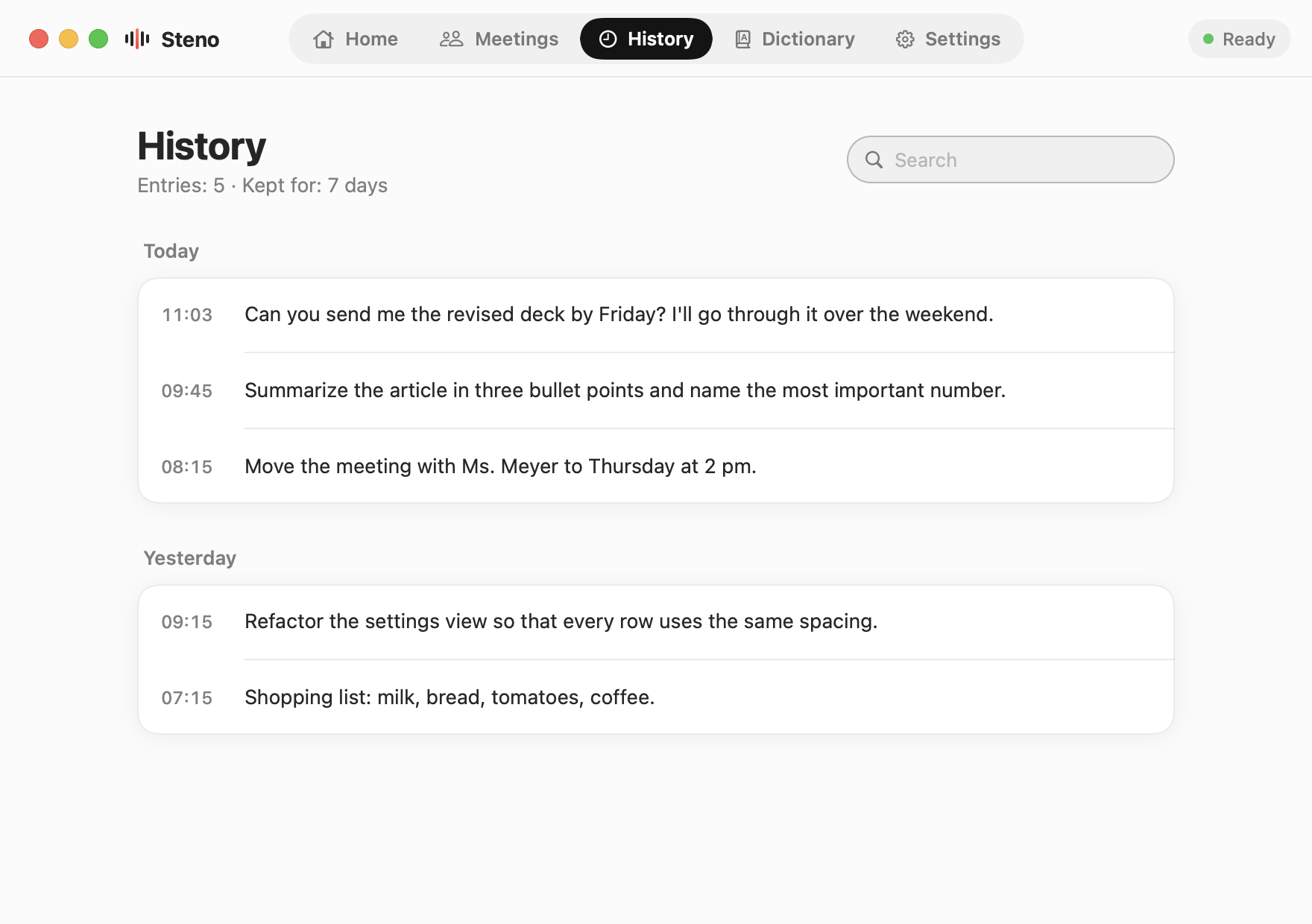
Set up Steno for confidential work
- Install and download the model. Download Steno.dmg and drag Steno into your Applications folder. Because Steno is distributed without a paid Apple Developer ID, allow the first launch with Open Anyway in System Settings › Privacy & Security. Then complete the assistant, including the one-time model download.
- Switch off the history. Open Settings from the Steno icon in the menu bar and, under History, set Keep dictations to Don’t save. If dictations are already saved, Steno asks for confirmation and deletes them.
- Check your dictionary. Words you add are saved in a JSON file on the Mac. Consider whether names of patients or clients belong there.
- Test offline. Switch off Wi-Fi and dictate a test sentence. Recognition works without a connection.
- Plan client meetings. Transcribe a conversation with a client or patient only if everyone agrees. In Settings, choose a place for the meeting folders that isn’t synced to a cloud, because Documents may be in iCloud Drive.
- Mind the target app. Steno inserts the text wherever your cursor is. What happens to it afterwards depends on that app, for example a web mail service or a document stored in the cloud.
What should you check yourself?
Many of these professions are bound by confidentiality rules, and journalists protect their sources. The rules differ between professions and countries, and Steno can’t assess them for you. Check your professional and data protection obligations and, if in doubt, clarify the use with the responsible body, such as your data protection officer, your professional body or your organization’s IT department. Because history, dictionary and meeting transcripts are ordinary files on the Mac, the protection of the Mac itself matters too, for example a login password and disk encryption. For a general overview of on-device dictation, see how to dictate on a Mac without the cloud.
Steno is free and open source. Download Steno for Mac, see what it does on the Steno home page or read the source code on GitHub.