
How to dictate on a Mac without the cloud
Speech can be turned into text on a server in the cloud or directly on your Mac. This guide explains what on-device dictation means, which options a Mac with Apple silicon offers and how to set it up step by step.
By Thesimpleex · · 3 min read
What does “without the cloud” mean?
Speech recognition relies on a trained model. If that model runs on your Mac, the recording is processed where it was made and does not have to be sent anywhere to become text. You can also dictate without an internet connection, for example on a train or a plane.
Three questions help you judge any dictation tool. Where is speech converted into text, on your Mac or on a server? Is the recording saved, and if so, where and for how long? And does the app send anything else, such as usage statistics or crash reports?
Two ways to dictate offline on a Mac
Apple Dictation. Dictation is built into macOS. On Macs with Apple silicon, it processes many languages directly on the device. You can switch it on in System Settings › Keyboard › Dictation.
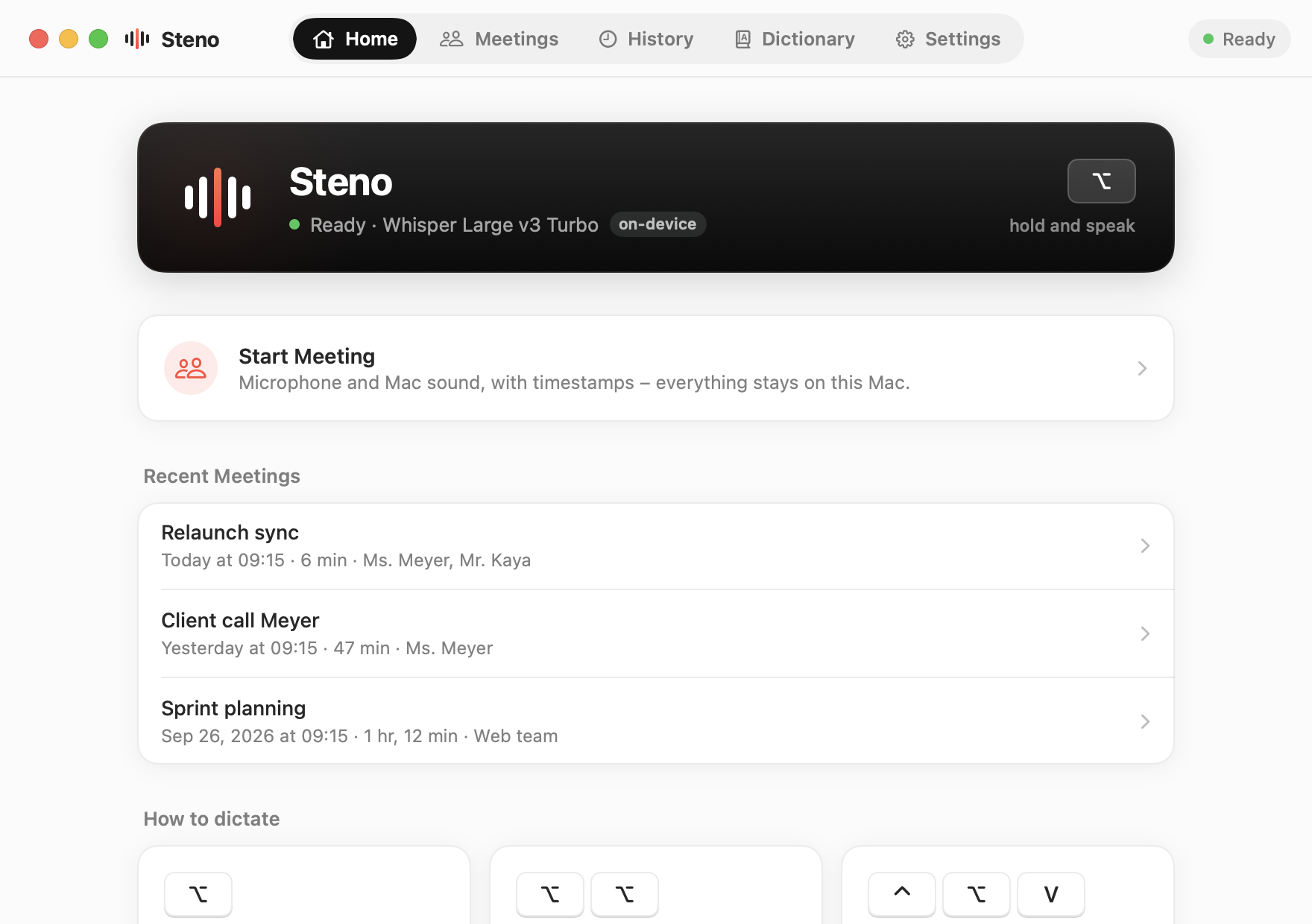
Steno. Steno is a free, open-source dictation app for the Mac, published under the MIT license. It uses OpenAI’s Whisper speech recognition through whisper.cpp, which runs on the Mac’s graphics chip via Metal. A sentence is usually ready in under a second. Steno records only while you dictate or a meeting runs, never writes the audio to disk and works without analytics, crash reports or an account. Its only connection is the one-time download of the speech model.
Set up Steno step by step
- Install. Download Steno.dmg and drag Steno into your Applications folder.
- Allow the first launch. macOS blocks the first launch because Steno is distributed without a paid Apple Developer ID. Close the message, then click Open Anyway in System Settings › Privacy & Security.
- Follow the assistant. Choose your language and allow access to the microphone and to Accessibility. Steno needs Accessibility to notice the key and to paste text at your cursor. The first meeting asks once for permission to hear your Mac’s sound.
- Download the model. The default model, Whisper Large v3 Turbo, is a 1.6 GB download from Hugging Face. It is pinned to a fixed version and verified with SHA-256.
- Try it. The assistant ends with a short test. After that, Steno runs in the menu bar.
How do you dictate with Steno?
Click into any text field, hold the left Option key (⌥), speak and release. The text appears at your cursor, in whichever app you are using. In the settings you can choose another key: right Option, right Command, left or right Control, right Shift or Globe/fn.
For longer passages, double-tap the key to dictate hands-free and tap it once to finish. Esc cancels a recording; if you press the key again within 3 seconds, it continues. ⌃⌥V pastes the last dictation again. Press Return while you are still recording, and Steno pastes the text and sends it, which is handy in chats. If no text field is active, the text waits in a small overlay at the notch or in a bubble above the Dock, ready to copy.
Steno recognizes German, Swiss German (spelled with “ss”), English, French, Italian and Spanish, or detects the language automatically.
Steno can also transcribe meetings. Your microphone and the Mac’s sound, for example from Teams, Zoom or the browser, end up in a transcript with timestamps. With ⌃⌥N or a click on the notch you add notes, marks and tasks, and a screenshot lands at the right moment. Each meeting is saved as a folder on your Mac; the sound is never stored. Only transcribe when everyone involved agrees.
How can you check that nothing leaves your Mac?
Once the model is downloaded, switch off Wi-Fi and dictate a sentence. The text still appears, because recognition runs entirely on the Mac. Your history and dictionary are stored as JSON files in ~/Library/Application Support/Steno/, and you decide how long the history is kept: 1, 7 or 30 days, or not at all. Meetings are ordinary folders, by default in ~/Library/Application Support/Steno/Meetings/. The source code is public, so anyone can read what the app does. If you handle confidential material, the guide on private dictation for confidential work goes into more detail.
What you need
- Mac with Apple silicon (M1 or later)
- macOS 14.2 Sonoma or later
- 2.5 GB free space, about 4 GB for the largest model
Steno is free and open source. Download Steno for Mac, see what it does on the Steno home page or read the source code on GitHub.